A clear, public guide for mentors and mentees using the Smart Mentor Hub mobile app. Follow step-by-step instructions for account setup, profile completion, mentor discovery, session booking, availability management, chat, video sessions, events, notifications, and account settings.
Welcome! Smart Mentor Hub connects mentees (entrepreneurs and founders) with experienced mentors. When you first open the app you'll see a short welcome tour, then you can log in or create an account.
When to use this: The very first time you open the app.
Install Smart Mentor Hub from the App Store (iPhone) or Google Play (Android) and open it.
Choose your language using the EN selector at the top - you can switch between English and Arabic at any time.
Swipe through the short welcome tour, or tap Skip.
On the last screen, tap Login if you already have an account, or Create an account to get started.
Tip
The tour highlights the main things you can do - find mentors, book with ease, and learn, connect & grow. You won't see it again after sign-up.
Welcome tour (mentee)
Welcome tour (mentor)
When to use this: When you're signing up and need to pick the right account type.
Mentee: You're seeking guidance for yourself or your business. You explore mentors, connect, book one-on-one sessions, join group sessions, chat, attend events, and rate your sessions.
Mentor: You're offering guidance. You build a professional profile, set availability, accept mentee requests, run one-on-one and group sessions, share posts, and view your reviews.
Note
On the sign-up and login screens you'll see a “You are a mentor?” / “You are a mentee?” link to switch to the correct account type.
📝 Creating & verifying an account
Sign-up has a few short steps: your login details, a verification code, some information about you, and finally your profile. Mentees answer questions about their business; mentors answer questions about their mentoring.
When to use this: The first step after tapping Create an account.
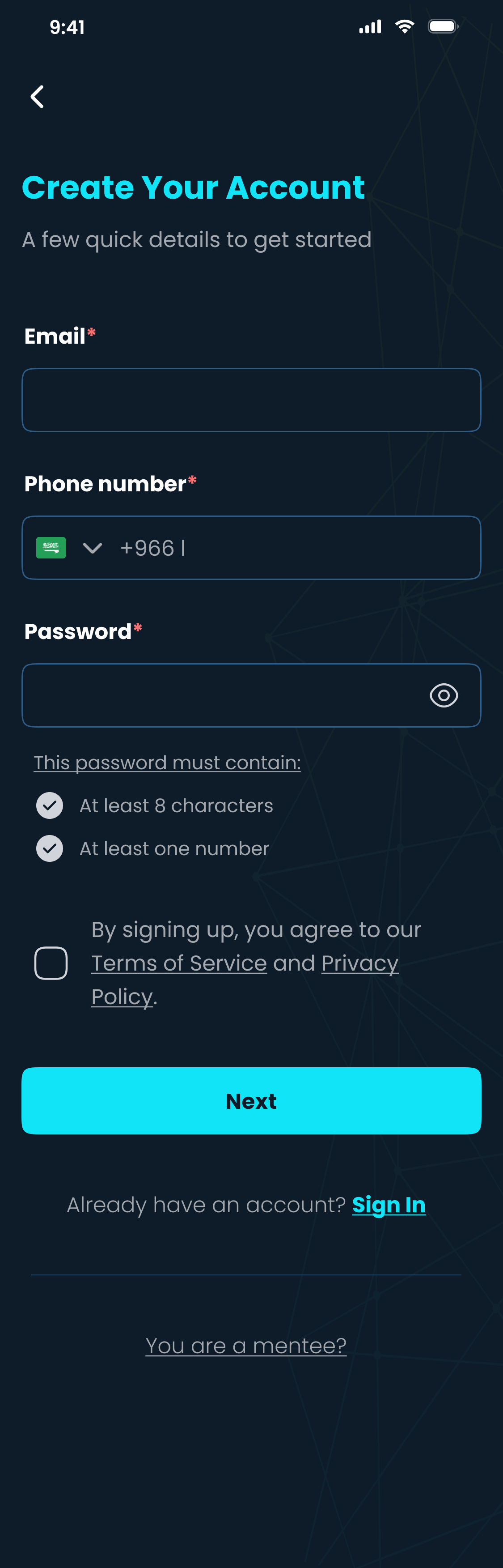
Enter your email, phone number, and a password.
Your password must have at least 8 characters, at least one number, and at least one letter — the app shows a checkmark as each rule is met.
Tick the box to agree to the Terms of Service and Privacy Policy.
Tap Next. If you picked the wrong role, use “You are a mentee?/mentor?” at the bottom to switch.
Double-check
Make sure your email and phone number are correct. The app uses them to verify your account and help you recover access later.
Create your account
When to use this: Right after Step 1, to confirm your account details.
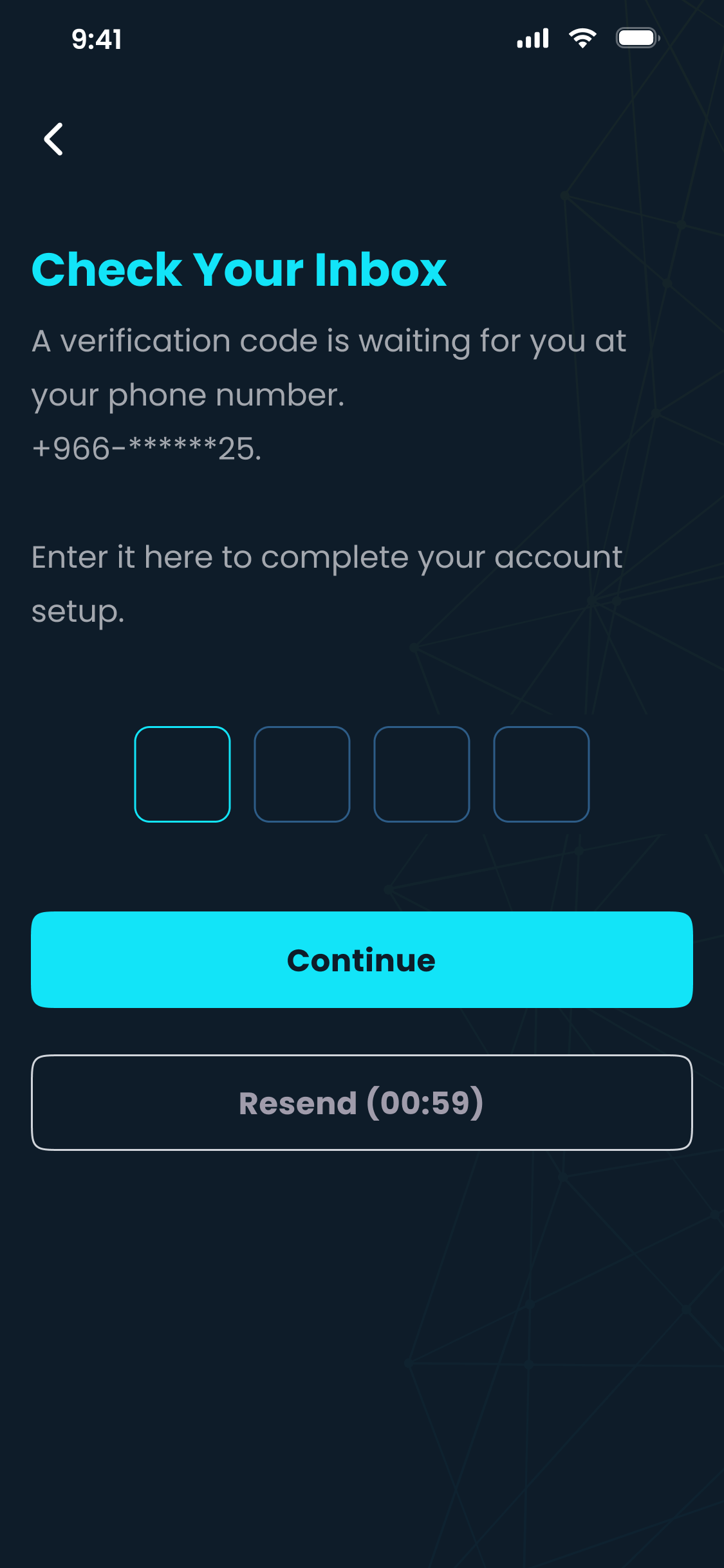
On the Check Your Inbox screen, the app sends a 4-digit code to your phone number.
Type the code into the four boxes and tap Continue. If it doesn't arrive, wait for the Resend timer to finish, then request a new one.
If a second verification step appears, follow the same process for that code before continuing.
Tip
The code expires after a short time. If yours has expired, just tap Resend for a fresh one. You have a limited number of attempts, shown on screen.
Didn't get the code?
Check your inbox, including spam / junk.
If you are verifying your phone, check your SMS messages and that the number you entered is correct.
Wait for the timer, then tap Resend.
After several attempts you may be asked to wait a little before trying again - this protects your account.
Enter your code
🎬Video guide: How to verify your account
When to use this: So we can match you with the most relevant mentors.
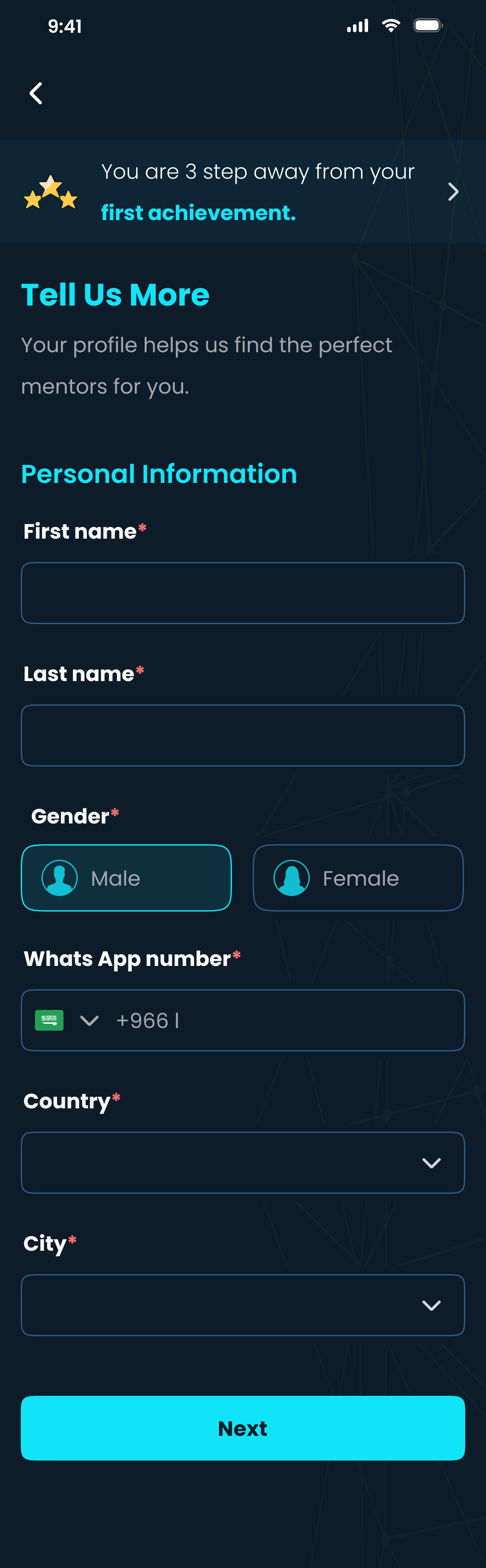
Personal information - first and last name, gender, WhatsApp number, country, and city.
Business information - business name, business sector, business stage, funding status, and LinkedIn profile.
Answer the mentee questionnaire so the app can understand your goals, needs, and current challenges.
Tap Next.
Tip
The clearer your goals, the better mentors can prepare. You can edit all of this later from your profile.
Personal information
Business & goals
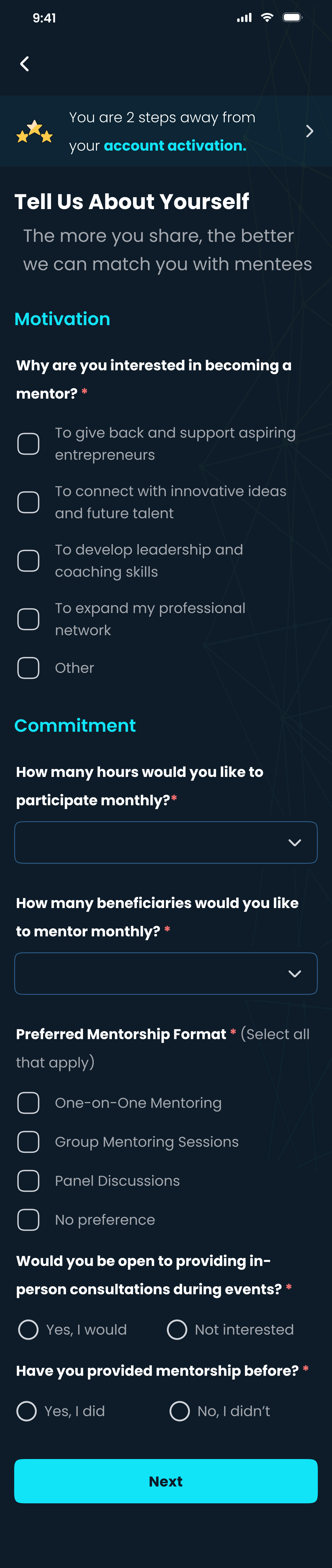
When to use this: So mentees can find you and understand how you like to mentor.
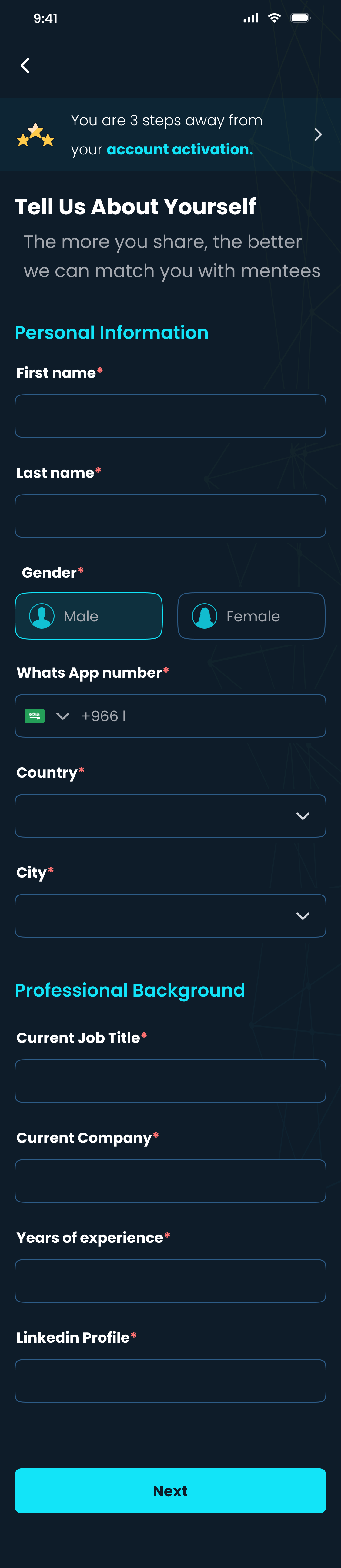
Personal information - first and last name, gender, WhatsApp number, country, and city.
Professional background - current job title, current company, years of experience, and your LinkedIn profile.
Answer the mentoring questionnaire so the platform can understand your mentoring style, interests, and availability expectations.
Tap Next to continue to your full profile.
Your background
Motivation & commitment
🧩 Completing your profile
The final sign-up step is your profile - a photo, a short bio, and your interests or expertise. A complete profile helps you get matched and get the most out of the platform.
When to use this: The last sign-up step, and any time you want to refresh your profile.
Tap Upload photo to add a profile picture.
Write a short bio.
Choose your preferred consultation language and your interests (for example, Sales, Business Development, Finance, or Marketing Strategy).
Add your company, current role, and education details such as highest degree, education level, and field.
Tap Complete Profile to start exploring mentors.
Tip
Pick interests that truly match your goals - they directly shape your mentor matches and your “Top Match” suggestions.
Complete your profile
When to use this: The last sign-up step before your account is activated.
Add a professional photo, a clear bio, and your areas of expertise.
Add your education, preferred consultation language, Website / Portfolio, and X (Twitter) link.
Submit your profile.
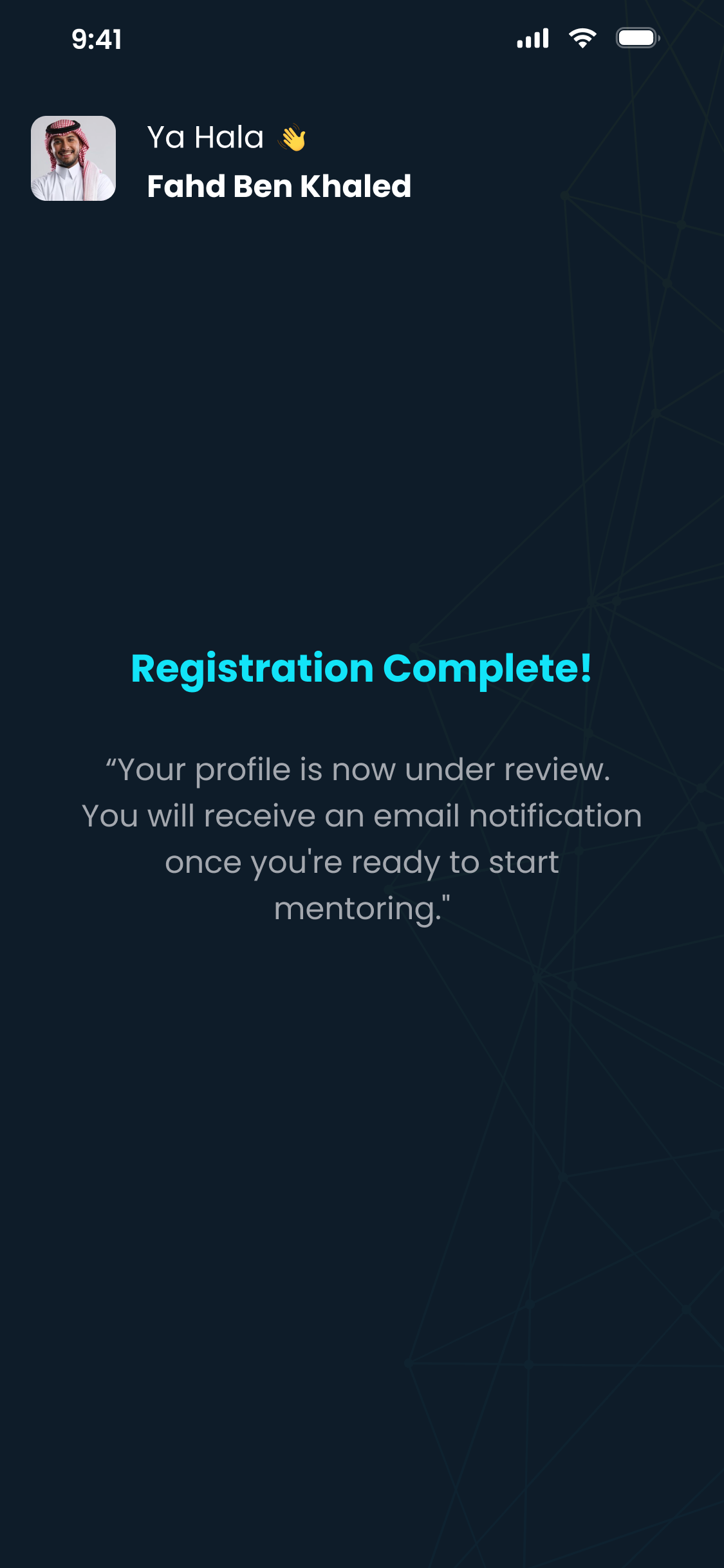
Your profile then goes under review. You'll see a “Registration Complete - your profile is now under review” message and will receive an email once you're approved and ready to start mentoring.
Why the review?
Mentors are reviewed before going live so mentees can trust that every mentor is genuine and qualified.
Profile under review
🎬Video guide: Building a great mentor profile
When to use this: Any time you want to update your details or see your stats.
Tap your profile photo or open your profile from Settings.
Your profile shows your stats — Total Sessions, Engaging Time, Average attendance, and Average rating — plus your bio, interests or expertise, experience, education, posts, and reviews.
Tap Edit to update any field, then save.
Your profile
🔑 Logging in & passwords
Use these steps to sign in, recover a forgotten password, or change your password.
When to use this: Every time you open the app and aren't already signed in.
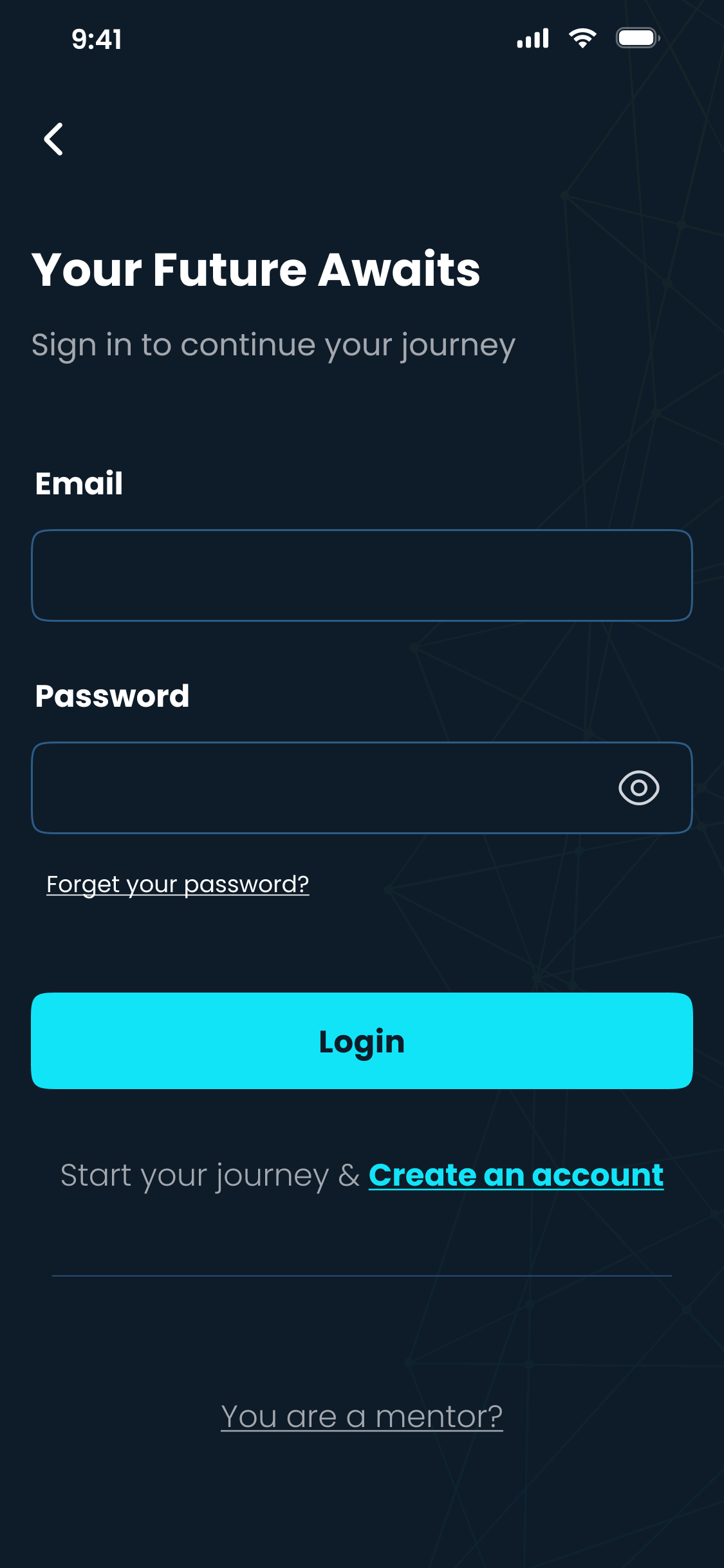
Tap Login and enter your email and password (use the eye icon to check it).
Tap Login.
Note
You usually stay signed in on your phone, so you won't need to log in every time.
Login
When to use this: When you can't remember your password and can't log in.
On the login screen, tap Forget your password?
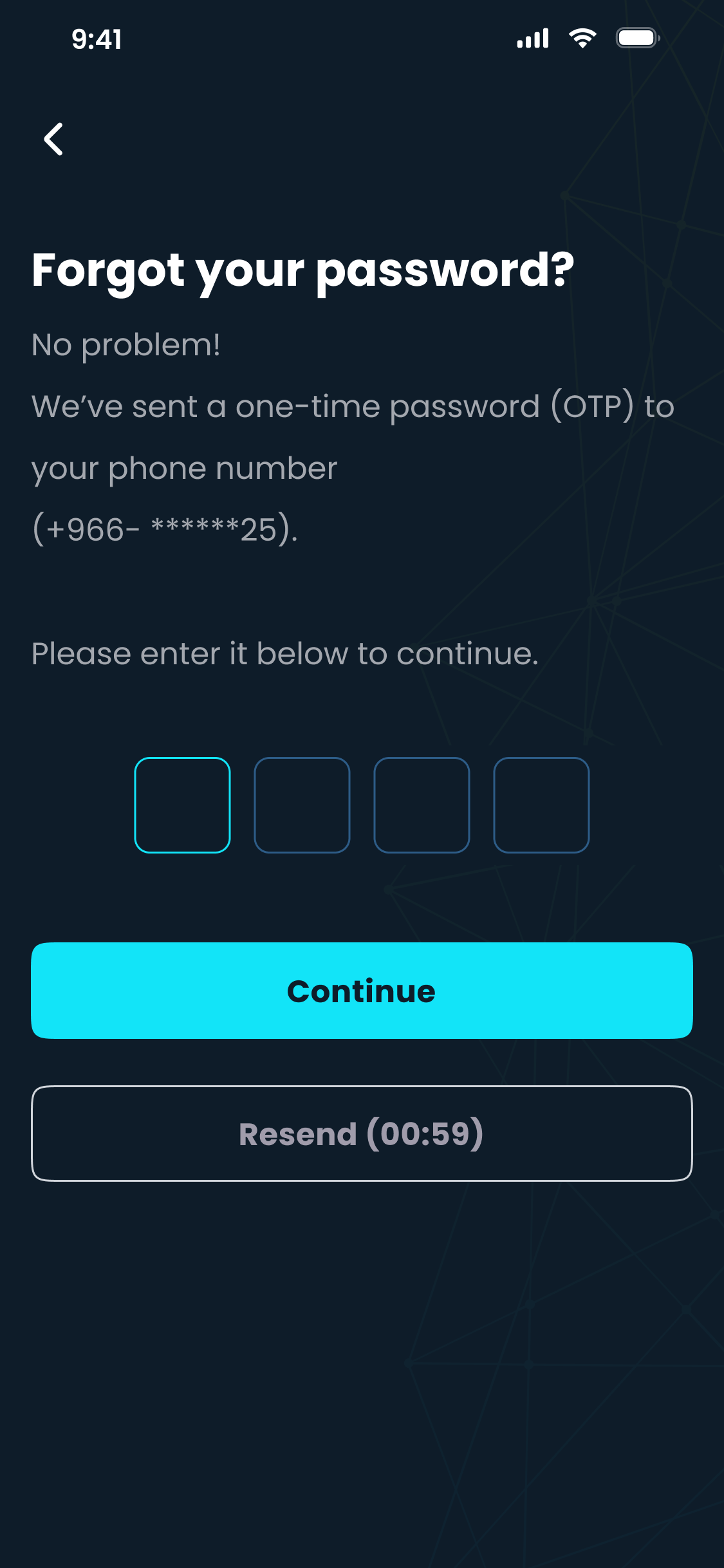
The app sends a one-time code (OTP) to your email. Enter it and tap Continue.
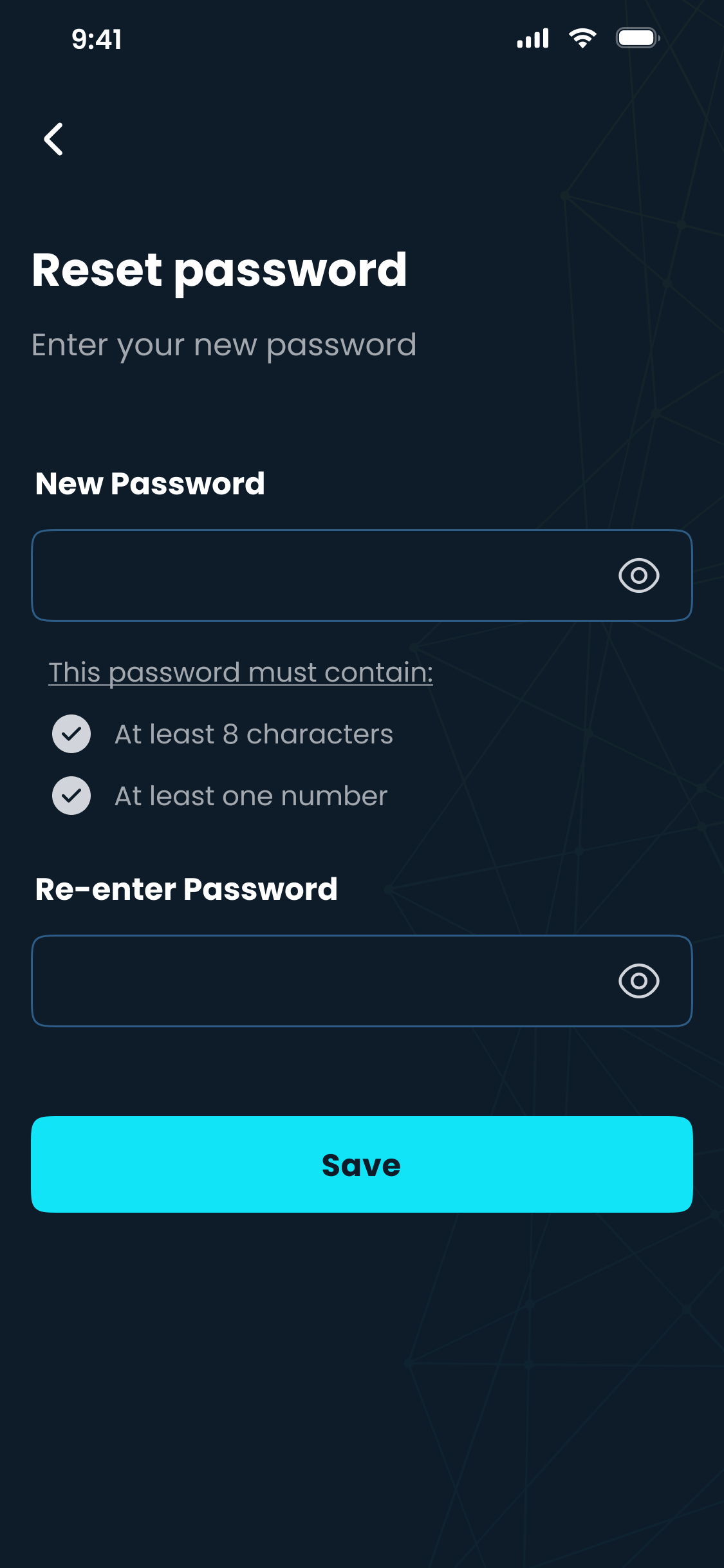
Create a new password with at least 8 characters, one number, and one letter, then re-enter it to confirm.
Tap Save, then sign in with your new password.
Not receiving the code?
Check the inbox for the email address on your account, including spam / junk.
Wait for the resend timer, then request a new code.
Enter the code
Set a new password
When to use this: When you're signed in and want to update your password.
Go to Settings → Security (or Change password).
Enter your current password, then your new password twice.
Tap Save.
Good to know
Use a password you do not use anywhere else. The app checks the same password rules used during sign-up.
🏅 Achievements & activation
As you use the app, you'll see friendly progress banners encouraging you toward your next milestone.
When to use this: No action needed - these banners appear automatically on your Home screen.
During sign-up you'll see how many steps remain to your first achievement (mentees) or account activation (mentors).
On Home, a banner such as “You're so close! Just one session left to reach an achievement” shows how near you are to your next milestone.
🔎 Finding the right mentor
Mentee Your Home and Explore screens suggest your top mentor matches. You can also search and filter to find someone specific.
When to use this: When you want to discover mentors matched to your interests.
Open the Home tab to see “Your Top Match” mentors, along with offline events and group sessions.
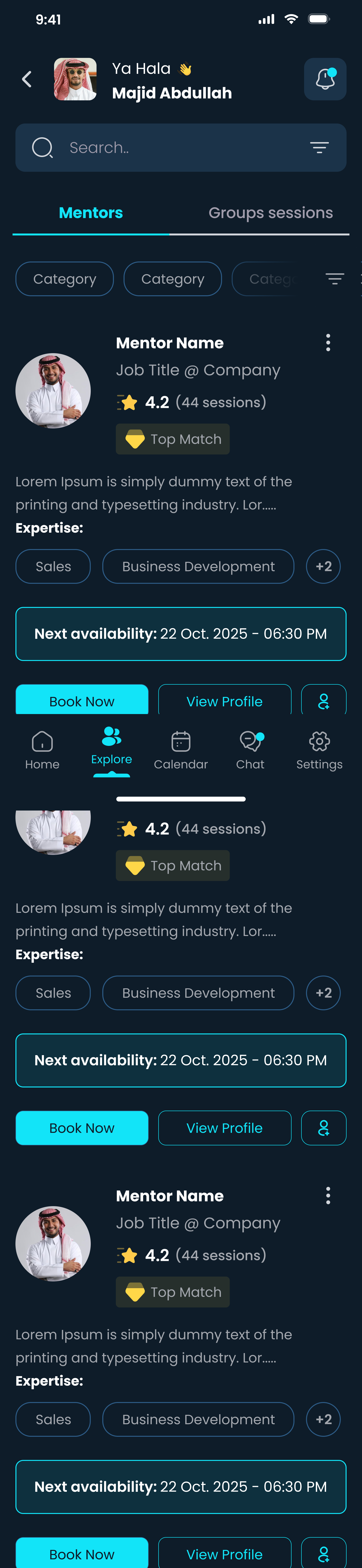
Or open the Explore tab and use the Mentors list with category filters.
Each mentor card shows their rating, number of sessions, expertise, a Top Match badge, and their next availability.
Tap View Profile to learn more, or Book Now to go straight to booking.
Home & top matches
Explore mentors
When to use this: When you're looking for a mentor with specific skills or expertise.
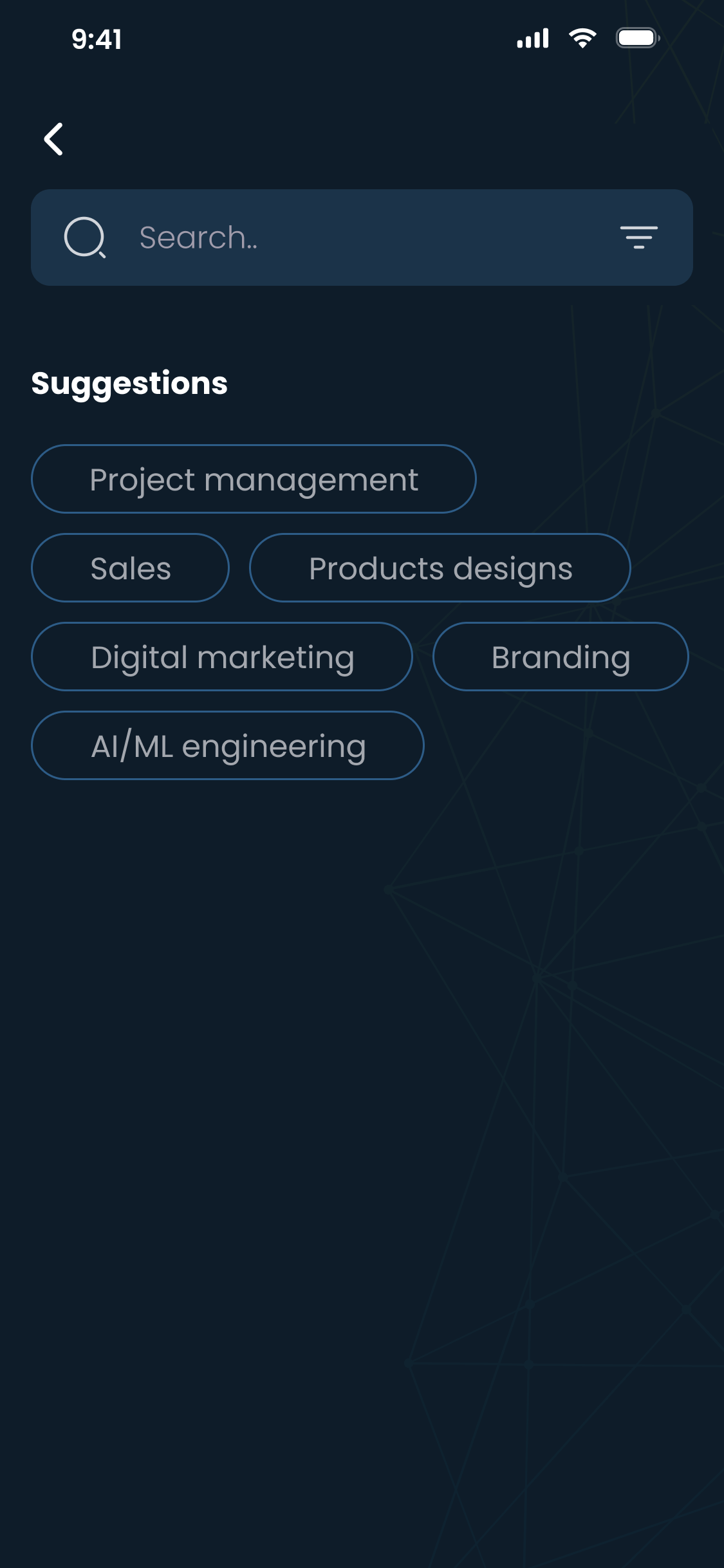
Open Explore and tap the search or filter controls.
Search by a skill, expertise area, or mentor name.
Use filters such as Skills, Industry, Years of Experience, Next Availability, Reviews, and Session Language.
Tap any result to open the mentor's profile.
Tip
Try broader terms if you get few results — for example “marketing” instead of a very specific niche.
Search & suggestions
When to use this: Before connecting or booking, to make sure a mentor is a good fit.
Open a mentor's profile from Home, Explore, or search.
Review their expertise, languages, experience, education, and posts.
Look for the Verified badge and check their stats and reviews (with tags like “problem solver” and “insightful”).
Tap Check Availability to see when they can meet and start a booking.
Mentor profile
🤝 Connecting & managing requests
Connections and bookings are separate. A mentee can ask to connect with a mentor from a mentor card or profile; mentors review those requests in Explore. Session bookings are handled from the mentor's availability.
When to use this: When you've found a mentor you'd like to work with.
Open Explore and browse mentors, or open a mentor's profile.
Tap the connect button on the mentor card or profile.
Your request appears as Pending until the mentor responds.
Once accepted, the mentor appears in My Connections in Explore, where you can view the profile, chat when available, and book future sessions.
Booking is separate
To schedule a one-on-one session, use Book Now or Check Availability. Booking sends a session request for a specific time.
When to use this: When mentees have asked to connect with you.
Open the Explore tab and switch to the Requests tab (it shows a count of new requests).
Review each mentee's profile and interests.
Tap Accept to connect, or Reject if it isn't a good fit.
Accepted mentees move to your Connections tab, where you can chat and see your last session with each of them.
Removing a connection
Either side can end a connection. Open the connection and choose Remove Connection (you'll be asked to confirm).
Requests
Your connections
📅 Booking a mentorship session
Mentee Pick a time, tell the mentor what you need, and send your request. Once the mentor approves, the session is confirmed.
When to use this: Use this when you want to schedule a 1-on-1 session with a mentor.
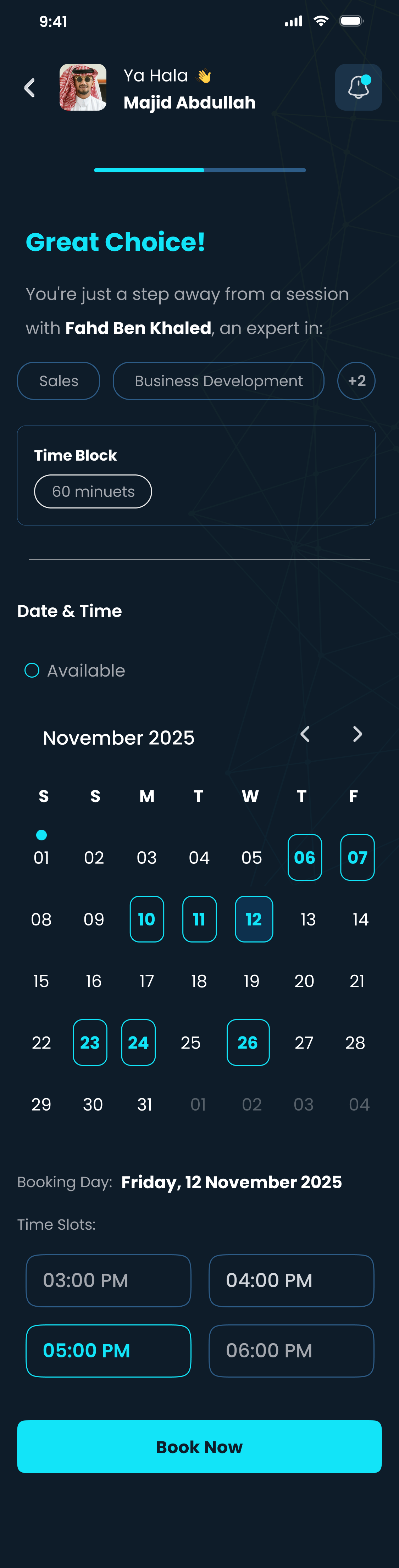
On the mentor's profile, tap Check Availability.
Pick an available date on the calendar, then choose one of the open time slots (booked times are greyed out).
Check the session duration and the time zone shown, then confirm the booking time.
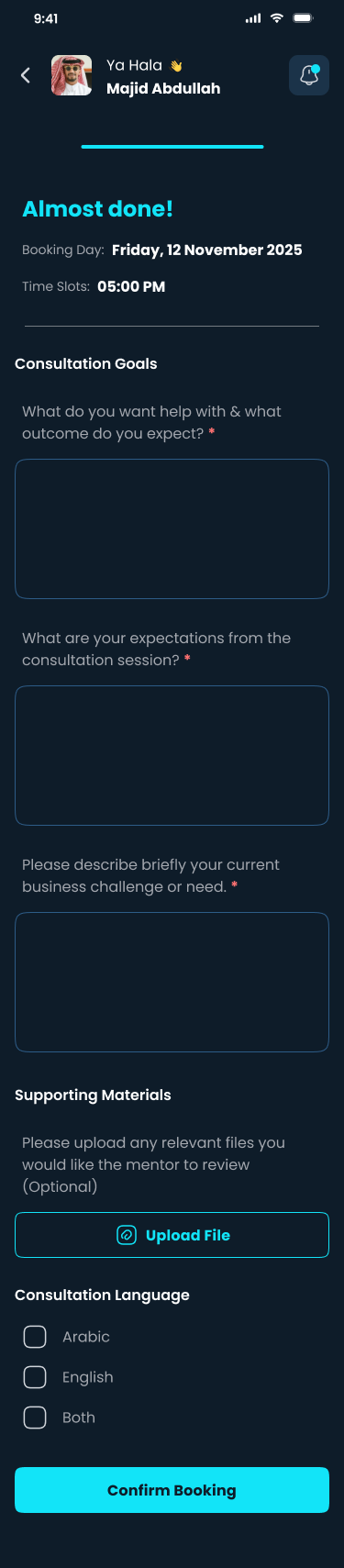
On the Almost done! screen, answer the Consultation Goals questions so the mentor can prepare.
Tap Confirm Booking. The session request shows as Pending until the mentor approves it.
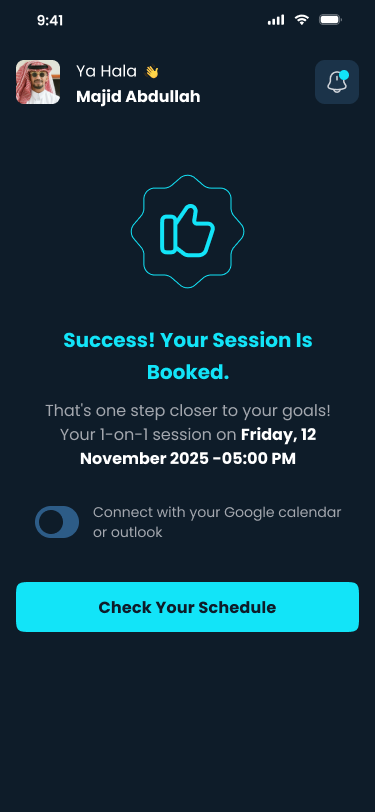
After you submit, you can optionally connect your Google calendar from the success screen or go to your schedule.
Notes
You can only book from the available time slots shown in the app.
The session isn't final until the mentor approves your request.
You'll receive notifications for every booking update.
Pick a date & time
Share your goals
Request sent
🎬Video guide: How to book a mentorship session
🗂️ Managing your sessions
Your Calendar tab holds all your sessions — upcoming and past. Session cards show the current status, such as Pending, Approved, Scheduled, Completed, or Cancelled.
When to use this: To check your schedule and get ready for your next session.
Open the Calendar tab and select Upcoming.
Filter by Individual session or Group session.
Each card shows the date, time, duration, and status. When it's time, a Join Now button appears.
Tap a session to open its details, where you can join, view the other person's profile, or manage the session.
Upcoming sessions
Session details
When to use this: When a mentee has requested a session that's waiting for you.
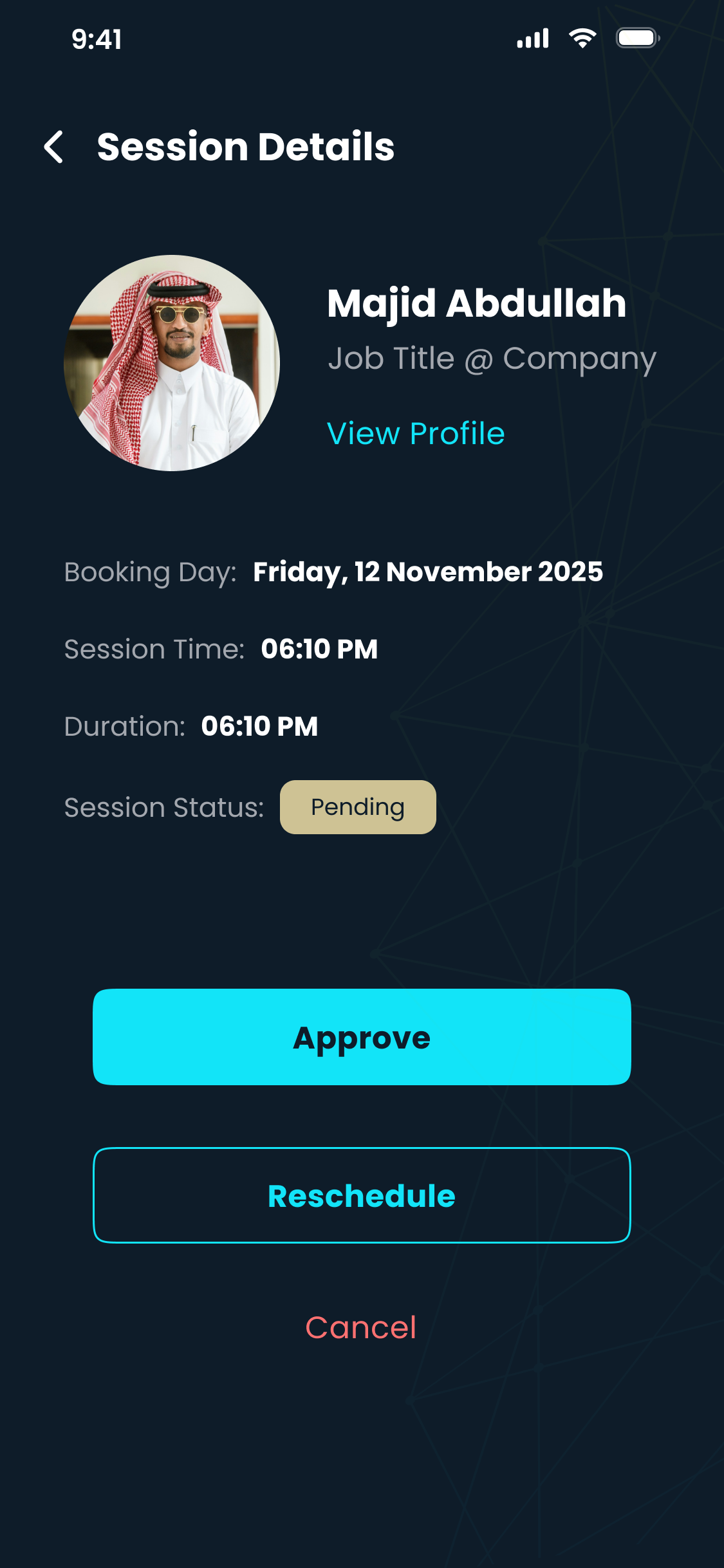
Open the Pending session from your Calendar or a notification.
Review the time and the mentee's Consultation Goals.
Tap Approve to confirm, Reschedule to propose a new time, or Cancel.
The mentee is notified of your decision.
When to use this: To look back at sessions you've already had.
Open the Calendar tab and select History.
Completed sessions are marked Completed and show the rating where one was given.
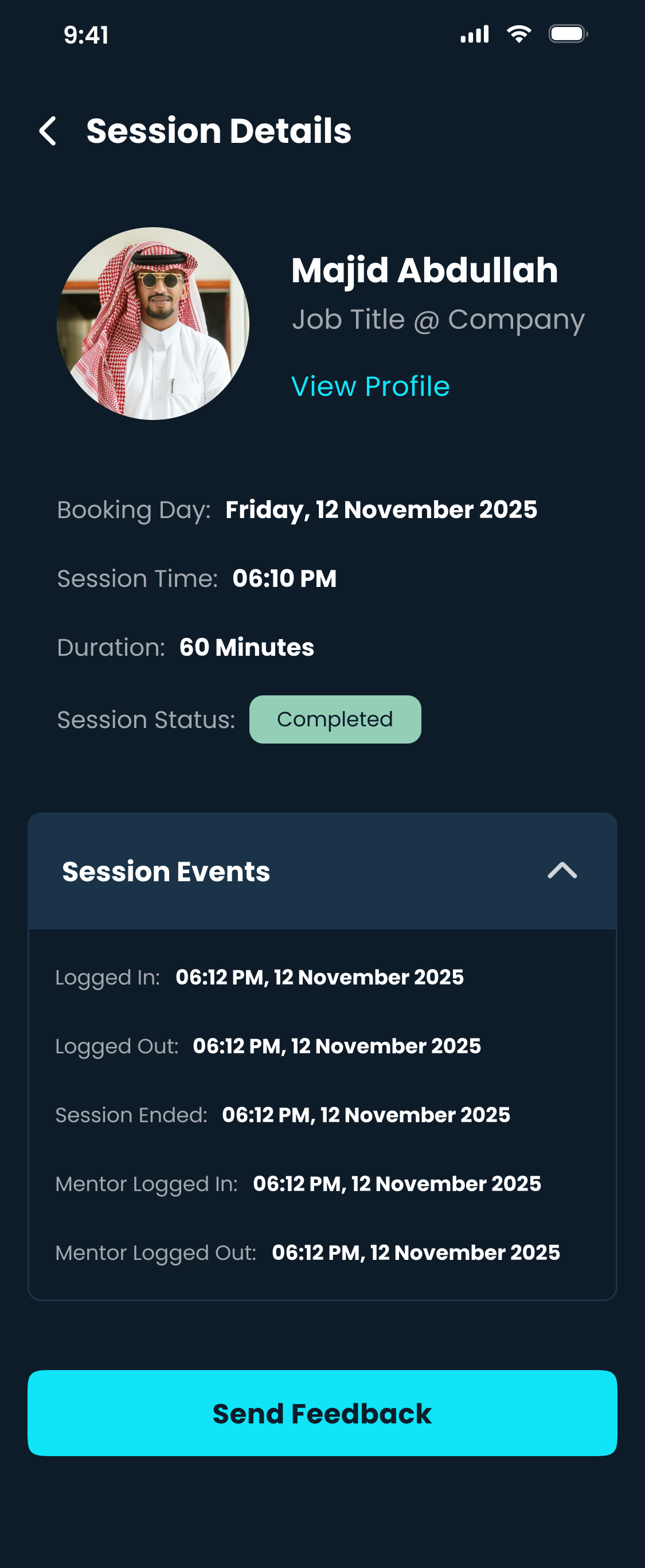
Tap a session to see its details and the Session Events log (when each person joined, left, and when the session ended).
From a completed session you can Send Feedback.
Session history
Session events log
🔄 Rescheduling & cancelling
Plans change. Either side can reschedule to another available time or cancel when needed. The other person is notified of the update.
When to use this: When you need a different time for an upcoming session.
Open the session from your Calendar and tap Reschedule.
Pick a new available date and time.
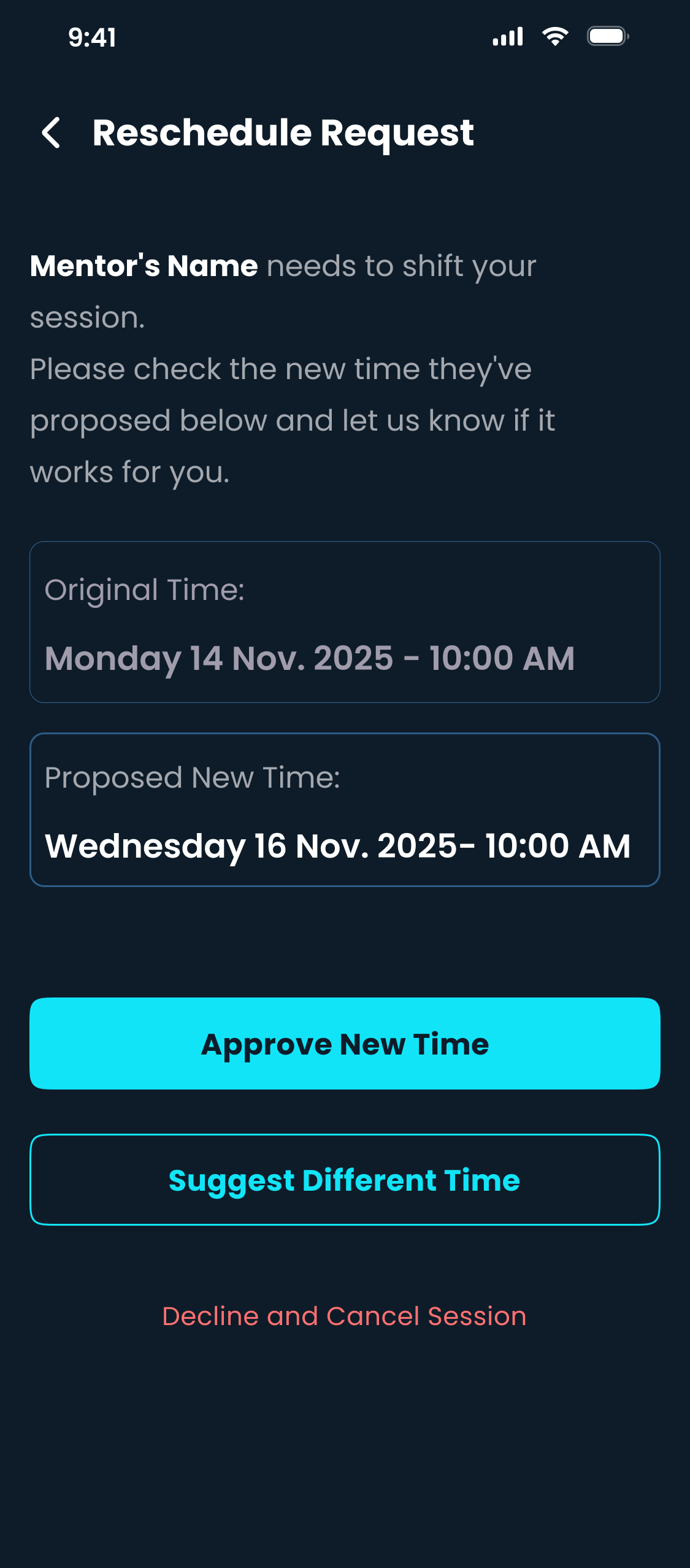
Add an optional reason, then tap Reschedule Now and confirm. The other person receives a notification with the updated time.
When to use this: When a session time no longer works for you, or when you receive a notification that a session has changed.
Open the session from a notification or from your Calendar.
If the new time does not work, tap Reschedule and choose another available slot.
If you cannot attend, tap Cancel. The app first suggests Reschedule Now; choose Cancel Anyway only if you really need to cancel.
Add an optional cancellation reason, then confirm. The other person is notified.
Be considerate
Reschedule or cancel as early as you can out of respect for the other person's time.
Reschedule or cancel
🗓️ Managing your availability
Mentor Decide when mentees can book you. Share your weekly availability and block specific dates when you're away.
When to use this: When setting up your schedule so mentees can book you.
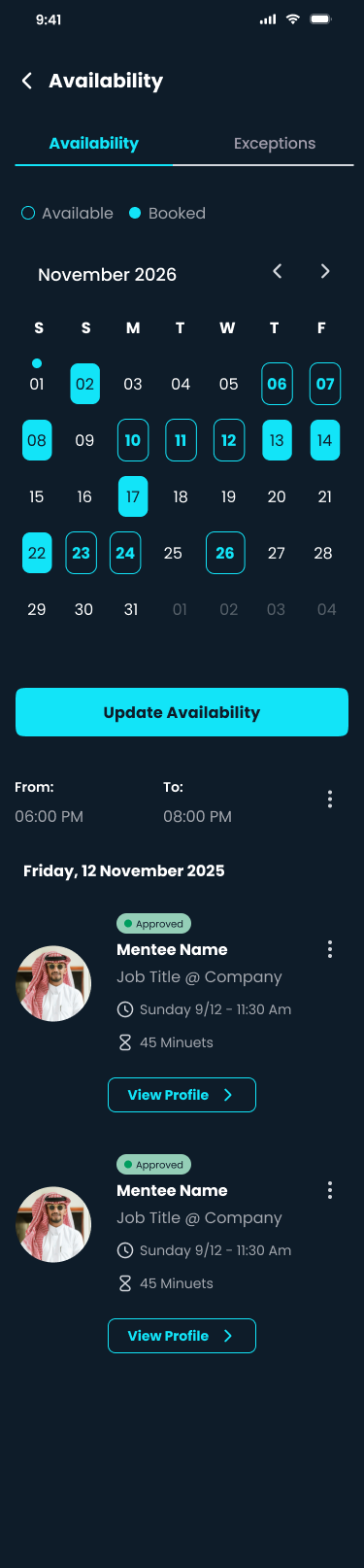
From your Home, tap Update Availability (or open the Availability screen).
On the Availability tab, the calendar shows Available and Booked days.
Choose your available days, start date, and whether the schedule repeats.
Select the session duration, then add one or more From / To time ranges.
Tap Submit. Your open times now appear to mentees as bookable slots; booked days show approved sessions below.
Tip
The app reminds you: “Have some free time this week? Share your availability now to receive more session requests.”
Availability
When to use this: When you're unavailable on a specific date but want to keep your normal availability.
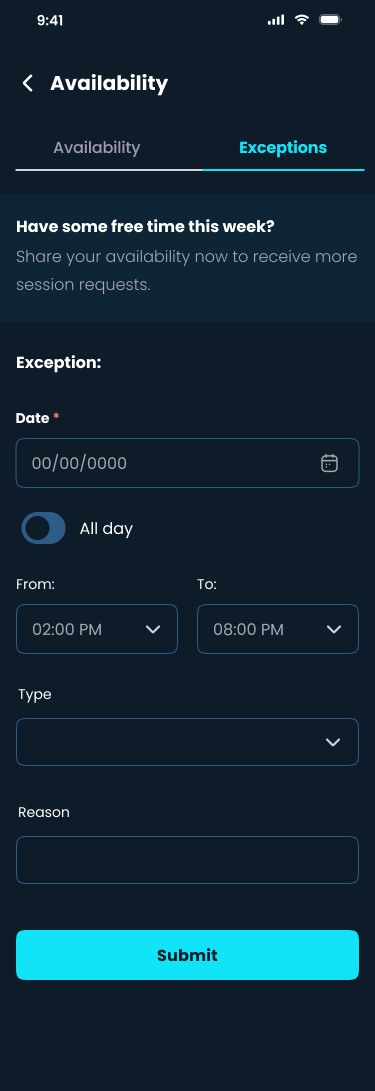
Open the Availability screen and switch to the Exceptions tab.
Tap Add Exception and choose the date.
Use the All day toggle, or set a From/To time range, and add a type and optional reason.
Tap Submit. The exception appears in your list and blocks new bookings for that time. Remove it to free the time again.
Exceptions
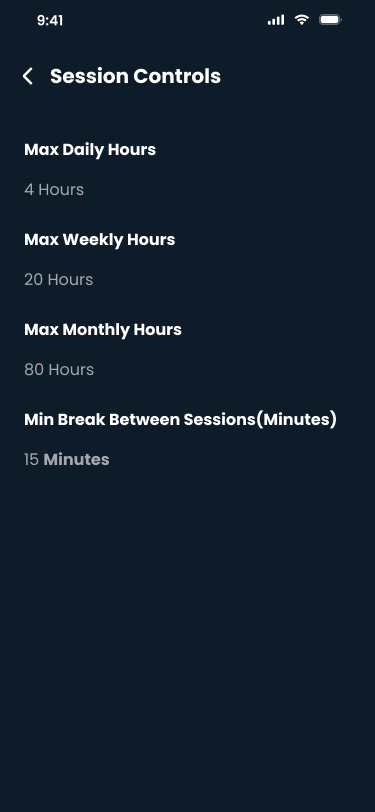
When to use this: To see the limits that protect your time and prevent over-booking.
Session Controls in Settings show your maximum daily, weekly, and monthly hours, plus the minimum break between sessions.
The app automatically respects these limits when mentees try to book you, so you won't be overloaded.
Use the Accepting new bookings toggle in Settings when you need to temporarily pause new booking requests.
Session controls
👥 Group sessions
Group sessions let a mentor meet several mentees at once. Mentees join a session; mentors create and host them.
When to use this: When a mentor offers a session for several mentees on a topic that interests you.
Find group sessions on your Home screen or in Calendar → Group Sessions.
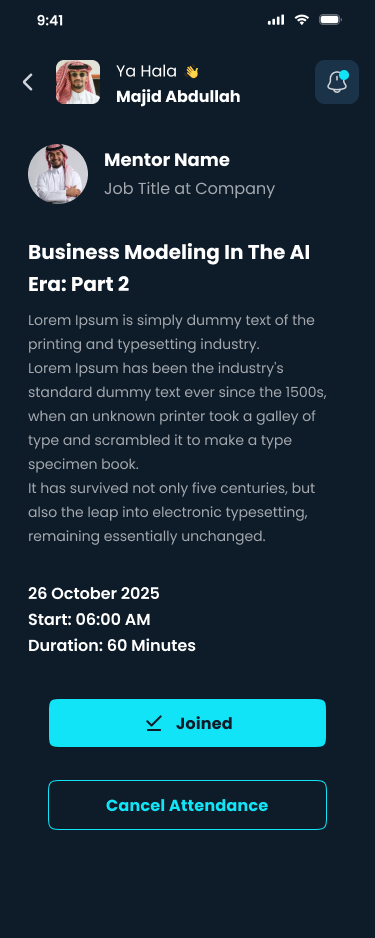
Open one to see the topic, date, time, duration, and how many spots are left (e.g. 12/15).
Tap Join. Your status changes to Joined.
Use the share button when you want to copy or share the group session link.
At the session time, open it and tap Join Now to enter the video call. You can Cancel Attendance any time before it starts.
Note
Spots are limited. If a session is full, check back later in case a place opens up.
A group session
When to use this: When you want to share your expertise with a group of mentees at once.
Open the Calendar tab, switch to Group sessions, and tap the + to create a New Group Session.
Add a session title, description, and topics to help mentees find it.
Choose a cover photo.
Pick the date, booking day, availability range, start time, and duration.
Set the maximum attendance number, then tap Publish.
Tip
A clear title and relevant topics help the right mentees discover and join your session.
Create a group session
Your group sessions
🎥 Joining a video session
Mentorship sessions (both one-on-one and group) take place as video calls inside the app.
When to use this: At the time of a scheduled session, to meet by video.
Open the Calendar tab (or the session details) and find your session.
A short time before it starts, a Join Now button becomes active.
Tap Join Now. The first time, allow the app to use your camera and microphone.
Use the on-screen controls to mute, turn your camera on/off, and leave the call when you're done.
Tip for a smooth call
Use Wi-Fi or a strong signal, in a quiet, well-lit spot.
Headphones reduce echo.
Join a couple of minutes early to check your camera and mic.
Can't join the call?
The Join Now button only appears close to the session time.
Check that camera and microphone permissions are allowed in your phone settings.
Close other apps using the camera, then try again.
🎬Video guide: Joining a video session
🖼️In-call video screen
📝 Sharing posts
Mentor Share insights and updates with the community. Your posts appear on your profile for mentees to see.
When to use this: When you want to share knowledge or an update.
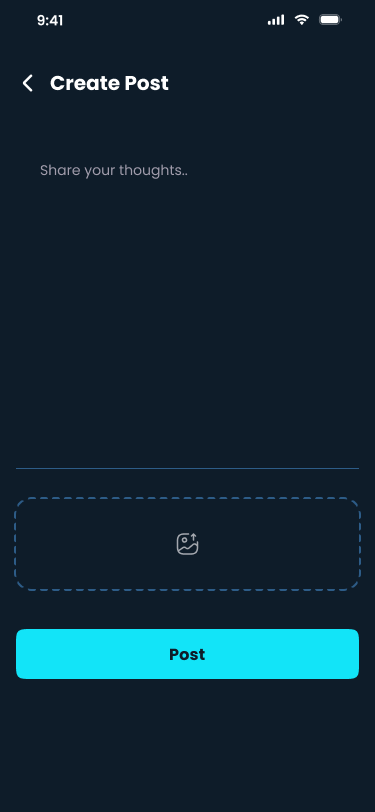
Open your mentor Profile, go to Posts, and tap Add Post.
Add a title, write the post content, and add an optional image.
Tap Post to publish. It appears in the Posts section of your profile for mentees to read.
Tip
Short, practical tips perform best. Keep it friendly and helpful.
Create a post
⭐ Feedback & ratings
After a session, the app may ask you to rate the experience. Feedback helps both sides improve and helps future mentees choose with confidence.
When to use this: After a session is completed.
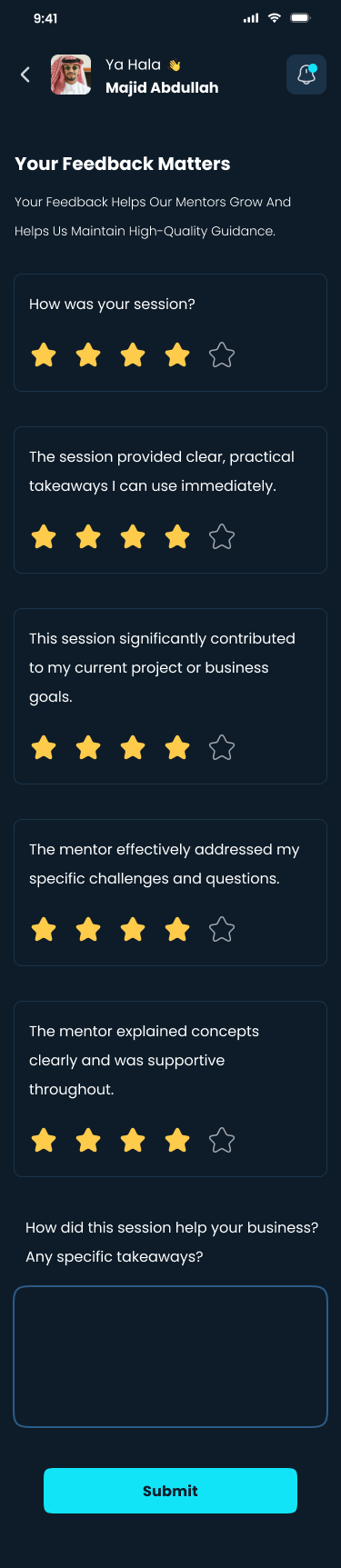
Open the completed session from your History and tap Rate Session or Send Feedback.
Give a star rating for “How was your session?” and for each statement (clear takeaways, contribution to your goals, how well your challenges were addressed, and clarity).
Add a short note about how the session helped your business.
Tap Submit.
Tip
Honest, kind feedback helps mentors improve and helps other mentees choose.
Your feedback
When to use this: To see how mentees rated your sessions and read their feedback.
Open your Profile and scroll to Reviews.
See your overall rating, individual reviews, and helpful tags (e.g. “problem solver”, “insightful”).
Note
Your overall rating and stats appear on your public profile so mentees can see them when choosing a mentor.
🎫 Events & QR tickets
Mentee Discover in-person events, register for a ticket, and check in at the door with your QR code.
When to use this: To find in-person events you can attend.
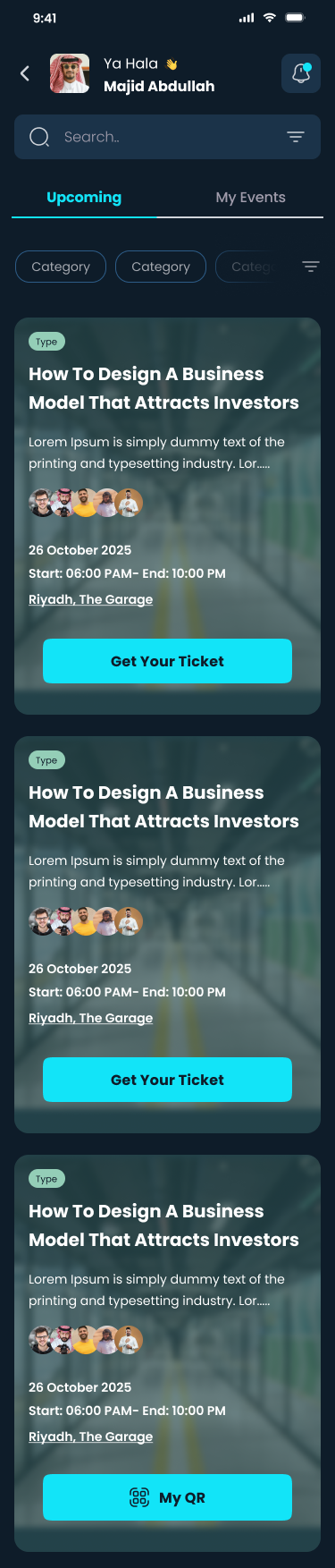
Open the Events section (also featured on your Home) and stay on the Upcoming tab.
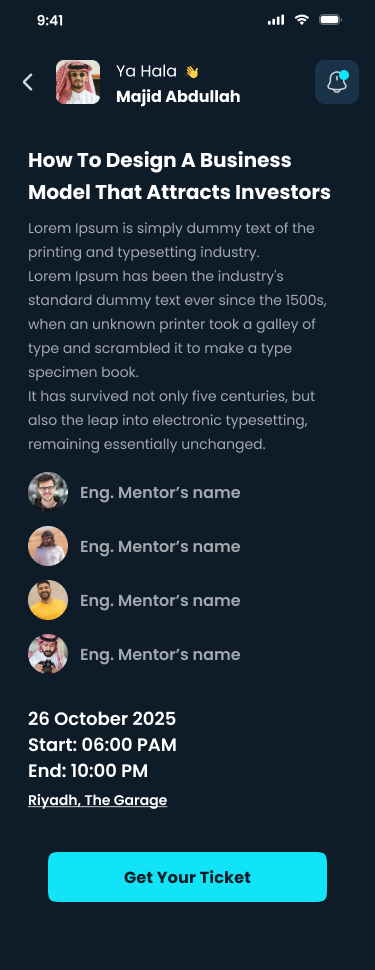
Tap an event to see its description, speakers, date, time, and location.
Tap Get Your Ticket to register.
Upcoming events
Event details
When to use this: When you want to attend an event and need a check-in code.
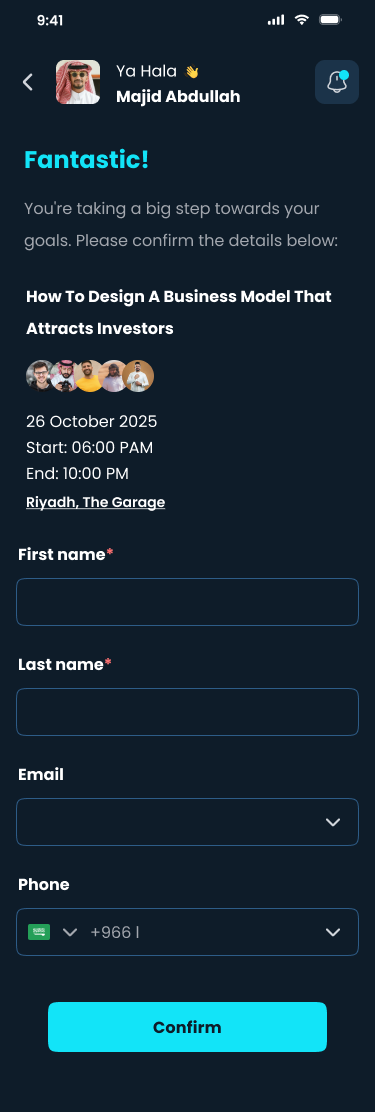
On the event, tap Get Your Ticket and confirm your name, email, and phone.
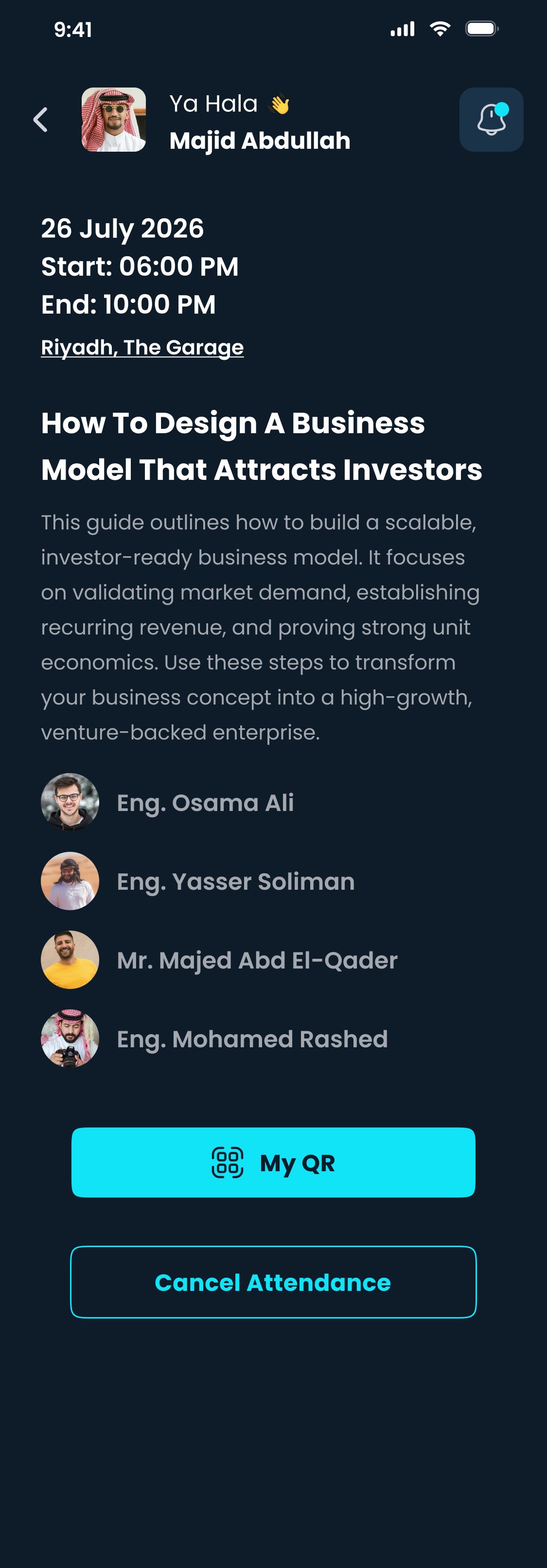
Tap Confirm. The event now appears under My Events.
Open it and tap My QR to view your personal QR code.
At the venue, show your QR code at the entrance to check in.
Can't make it? Open the event and tap Cancel Attendance to free your spot.
Tip
Open your QR code before you arrive in case you don't have a signal at the venue.
Register
Your QR ticket
💬 Using chat
Chat becomes available 24 hours before the first scheduled session between the mentee and mentor.
When to use this: When you want to message someone you're connected with.
Open the Chat tab, or tap Chat on a connection's card.
Use search to find an assigned conversation, then tap it to open the chat.
Type your message and send it. You can also attach a file from the message composer when you need to share material.
An unread badge appears on the Chat tab and on conversations when you have new messages.
Note
If you do not see a chat option yet, your first session may be more than 24 hours away, or there may not be a scheduled session between you yet.
🖼️Chat conversation screen
🔔 Managing notifications
Notifications keep you up to date on requests, bookings, messages, reschedules, events, ratings, and reminders.
When to use this: To catch up on what's happening in your account.
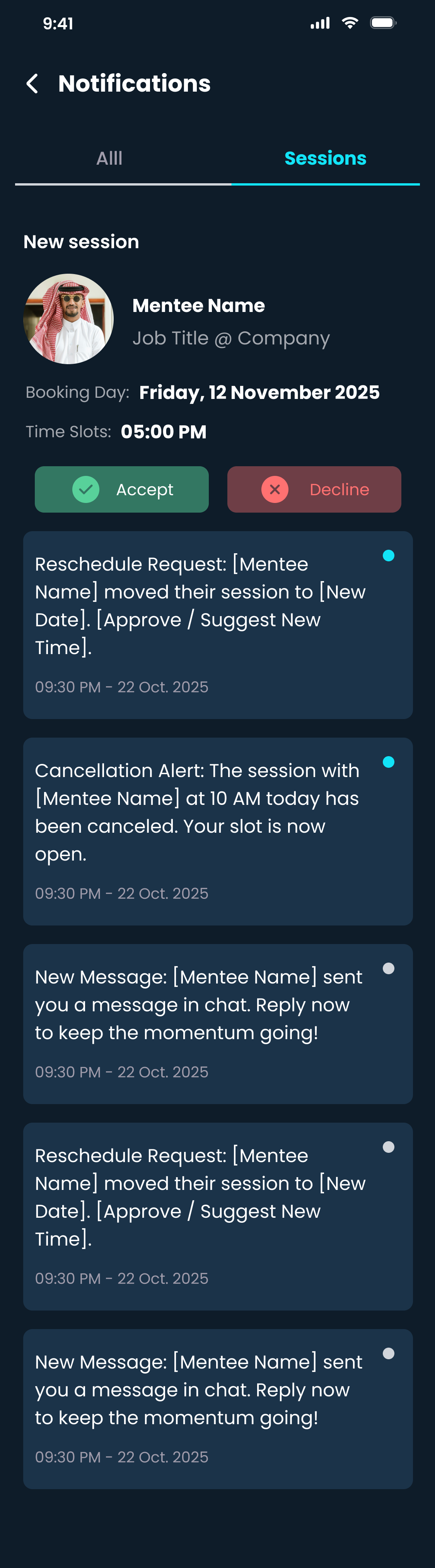
Tap the 🔔 bell icon to open your notifications.
Switch between All and Sessions to focus on session activity.
Unread notifications are marked clearly. Use Mark all as read when you want to clear them.
Tap any notification to open the related screen, such as a session, chat, event, or rating.
Notifications
When to use this: When you want more (or fewer) alerts.
Go to Settings → Notifications.
Choose the channels you want: Push, Email, and SMS.
Turn activity alerts on or off for Booking Change, New Messages, Rating, and New Events, or use Disable all.
Not getting notifications at all?
Enable notifications for the app in your phone's system settings.
Make sure the relevant types are on in Settings → Notifications.
Check that your phone isn't in Do Not Disturb or silent mode.
⚙️ Updating account settings
The Settings tab is home to privacy and contact links, notification preferences, logged devices, language, security, and sign out. Mentors also see session controls and an Accepting new bookings toggle.
When to use this: Any time you want to update your account.
Open the Settings tab from the bottom navigation.
Use the quick cards for Privacy Policy and Contact Us.
Open Notifications, Logged devices, Language, or Security depending on what you need to change.
Mentors can also open Session Controls and turn Accepting new bookings on or off.
Bottom navigation
Across the app you'll find five tabs: Home, Explore, Calendar, Chat, and Settings.
When to use this: When you need to change your email, phone number, or password.
Go to Settings → Security.
Choose Update Email, Update Phone, or Change Password.
For email or phone changes, enter the new value and verify it with the 4-digit OTP code.
For password changes, enter your current password, your new password, and confirm it.
Password rule
Your new password must have at least 8 characters, one number, and one letter.
When to use this: When you want to see where your account is signed in.
Go to Settings → Logged devices.
Review the devices and their last activity.
If you do not recognize a device, remove it from the list and change your password.
🌐 Changing the app language
The app is available in English and Arabic. You can switch any time.
When to use this: Whenever you'd prefer to use the app in another language.
Use the EN selector on the welcome screens, or go to Settings → Language at any time.
Choose English or العربية (Arabic).
The app updates instantly. In Arabic, the layout switches to right-to-left.
Note
Your language choice is saved for next time.
📄 Privacy, terms & contact
Find our policies and reach us whenever you need help.
When to use this: To understand how your data is handled and the rules for using the app.
You can read the Terms of Service and Privacy Policy when signing up.
At any time, go to Settings and tap Privacy Policy.
When to use this: When you need help that isn't covered in this guide.
Go to Settings and tap Contact Us.
Send us a message describing your issue, and our team will get back to you.
🚪 Signing out
Sign out when you want to log off this phone. You can also review logged devices from Settings.
When to use this: When you want to log off on this phone.
Open the Settings tab.
Scroll down and tap Sign out, then confirm.
You'll be returned to the login screen.
Note
Signing out doesn't delete anything — log back in any time with your email and password.
❓ Frequently asked questions
Quick answers to the questions we hear most often.
Every mentor profile is reviewed before going live so mentees can trust that mentors are genuine and qualified. You'll receive an email once you're approved and ready to start mentoring.
When you book, the session is Pending until the mentor approves it. Once approved it becomes Confirmed and you'll get a notification. You can then optionally connect your Google calendar from the success screen.
Yes. After you send a booking request, the success screen offers a Connect with your Google calendar option.
A one-on-one session is just you and the mentor. A group session is hosted by a mentor for several mentees on a chosen topic, with a limited number of spots.
Chat unlocks 24 hours before the first scheduled session between the mentee and mentor. Until then, you can view profiles and manage bookings, but messaging may not appear yet.
The Join Now button becomes active shortly before the start time. Join a couple of minutes early to check your camera and microphone.
Open your QR code from My Events before you arrive. That way you can show it at the door even if the venue has a weak signal.
Yes. The app is available for both iOS and Android and works the same way on both.
🛠️ Troubleshooting common issues
Having trouble? Find your issue below for a quick fix.
? I didn't receive my verification code (OTP)
Check your email inbox, including spam / junk. If you are verifying your phone, check your SMS messages too.
Wait for the Resend timer to finish, then request a new code.
After several attempts you may need to wait briefly before trying again — this protects your account.
? I entered the wrong email or phone number
Go back to the previous step to correct your details, then request a new code. If you've already finished sign-up, you can update your details later from Settings → Profile.
? I can't log in
Double-check your email and password (passwords are case-sensitive).
If you're a mentor, make sure your account has been approved — you'll get an email once it is.
Tap Forget your password? on the login screen, enter the code sent to your email, and set a new one. See Forgot your password?
? I can't find a mentor
Try broader search terms or a different suggestion chip.
Update your interests in your profile to improve your matches.
? My booking still says “Pending”
New bookings wait for the mentor to approve them. You'll get a notification once it's confirmed. If a mentor proposes a different time, you can approve it or suggest another.
? I can't book a time slot
You can only book the available slots shown — greyed-out times are already booked.
Mentors have daily, weekly, and monthly limits, so some times may be unavailable.
Check back later, as mentors add new availability regularly.
? I can't join the video call
The Join Now button only appears close to the session time.
Allow camera and microphone permissions in your phone settings.
Close other apps using your camera, and check your internet connection.
? A group session is full
Group sessions have a limited number of spots. If one is full, check back later in case someone cancels.
? Chat isn't available
Chat unlocks 24 hours before your first scheduled session together. If you cannot message someone yet, check whether you have an upcoming session within the next 24 hours.
? I'm not receiving notifications
Enable notifications for the app in your phone's system settings.
Turn on the types you want in Settings → Notifications.
Check that your phone isn't in Do Not Disturb or silent mode.
? I want to change the app language
Use the EN selector on the welcome screens, or go to Settings → Language. See Changing the app language.
Still need help?
Reach our support team from Settings → Contact Us in the app, or see Contact us.